Manage Teams
Teams are groups of users and this function is practical when you want to assign more than one user as a program manager or as a responsible person for an organizational unit. Instead of assigning individual users one by one, you can create a team and then assign this team as a program manager or responsible person. This significantly simplifies management, especially in larger organizations or when responsibilities change frequently. This way, team members can change without you having to correct program responsibilities.
Important: You need admin rights for this function.
Prerequisites
- You have administrator rights in the system
- The users you want to combine into a team already exist in the system
- You know the structure of your organization and the desired team compositions
Step-by-Step: Create and Manage Teams
1) Access Teams via Dropdown Menu
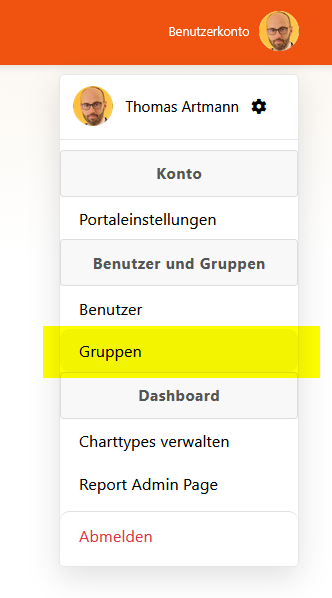
- Open the dropdown menu at your user account (usually top right in the system)
- Click on "Groups" to go to the teams management
2) Overview of Teams
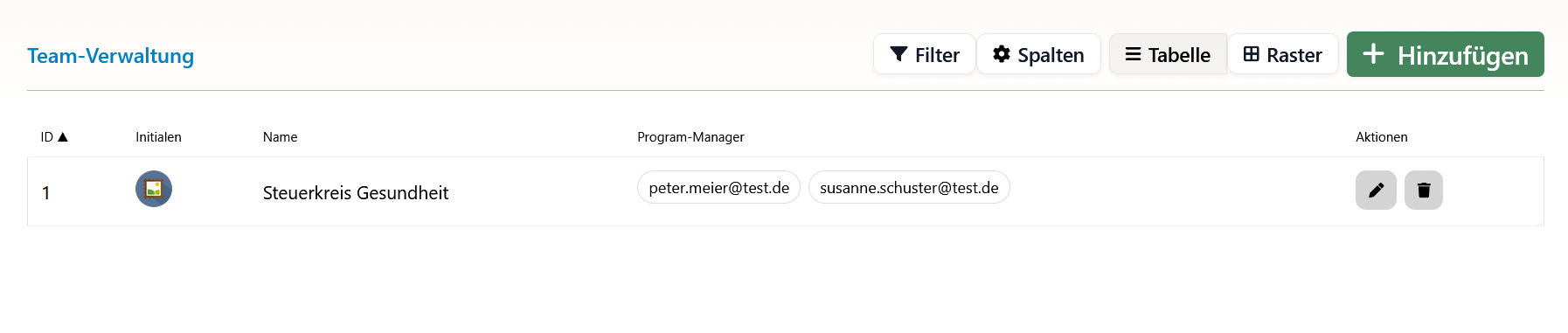
- Here you see all available teams in a clear list
- You can edit, delete existing teams or manage their members
- Click on "Add" to create a new team
3) Create New Team
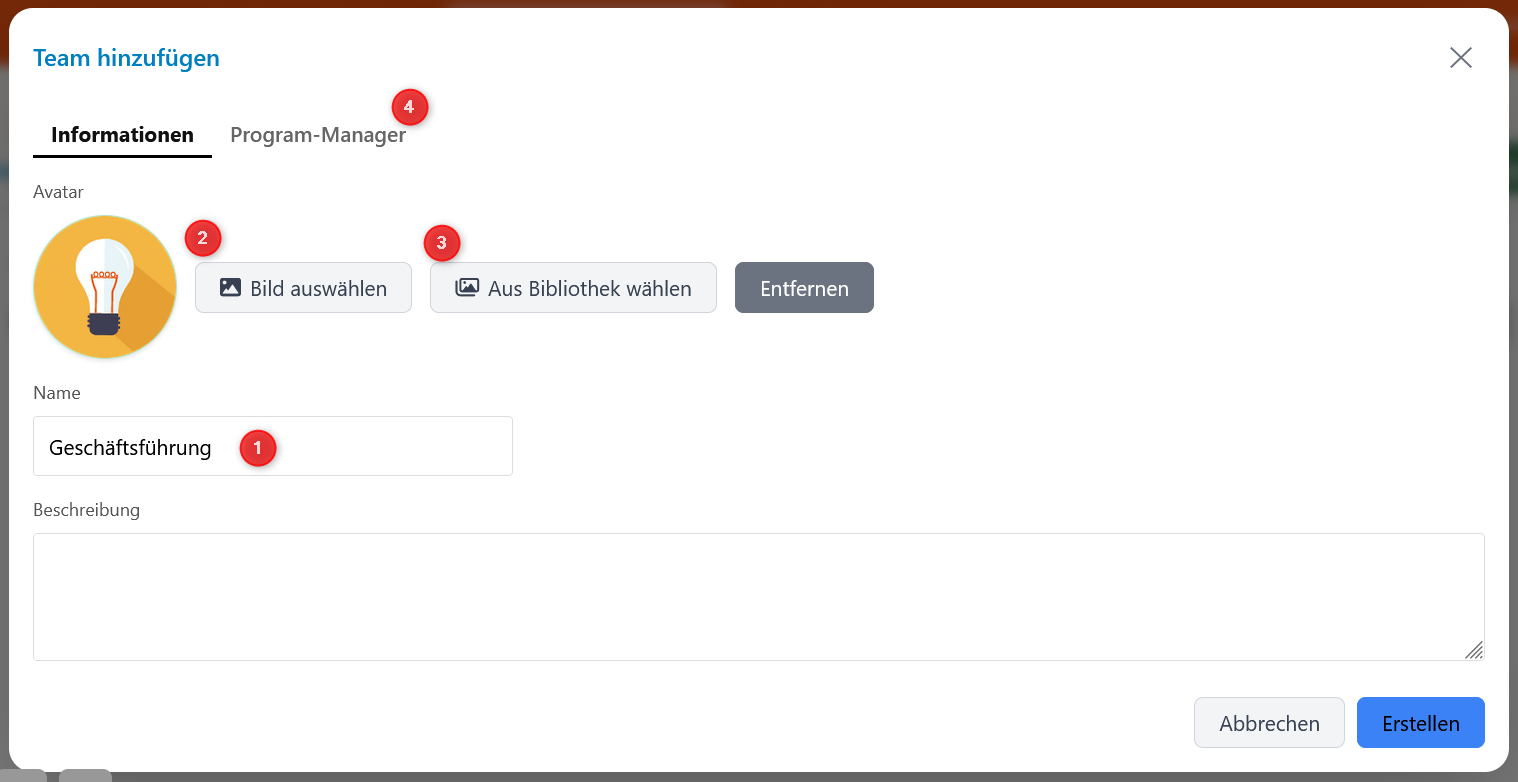
- (1) Team Name: Give a meaningful name for the team. The name should clearly describe the function or composition of the team (e.g., "Program Manager IT", "Responsible HR", "Management Team").
- (2) Upload Own Image: You can upload your own image for the team to visually identify it. This image will then be displayed when the team is assigned.
- (3) Choose Image from Library: Alternatively, you can choose an image from the existing library if you don't want to use your own image.
- (4) Add Users: Here you add users to the team. Click on this area to go to the user selection.
4) Add Users to Team
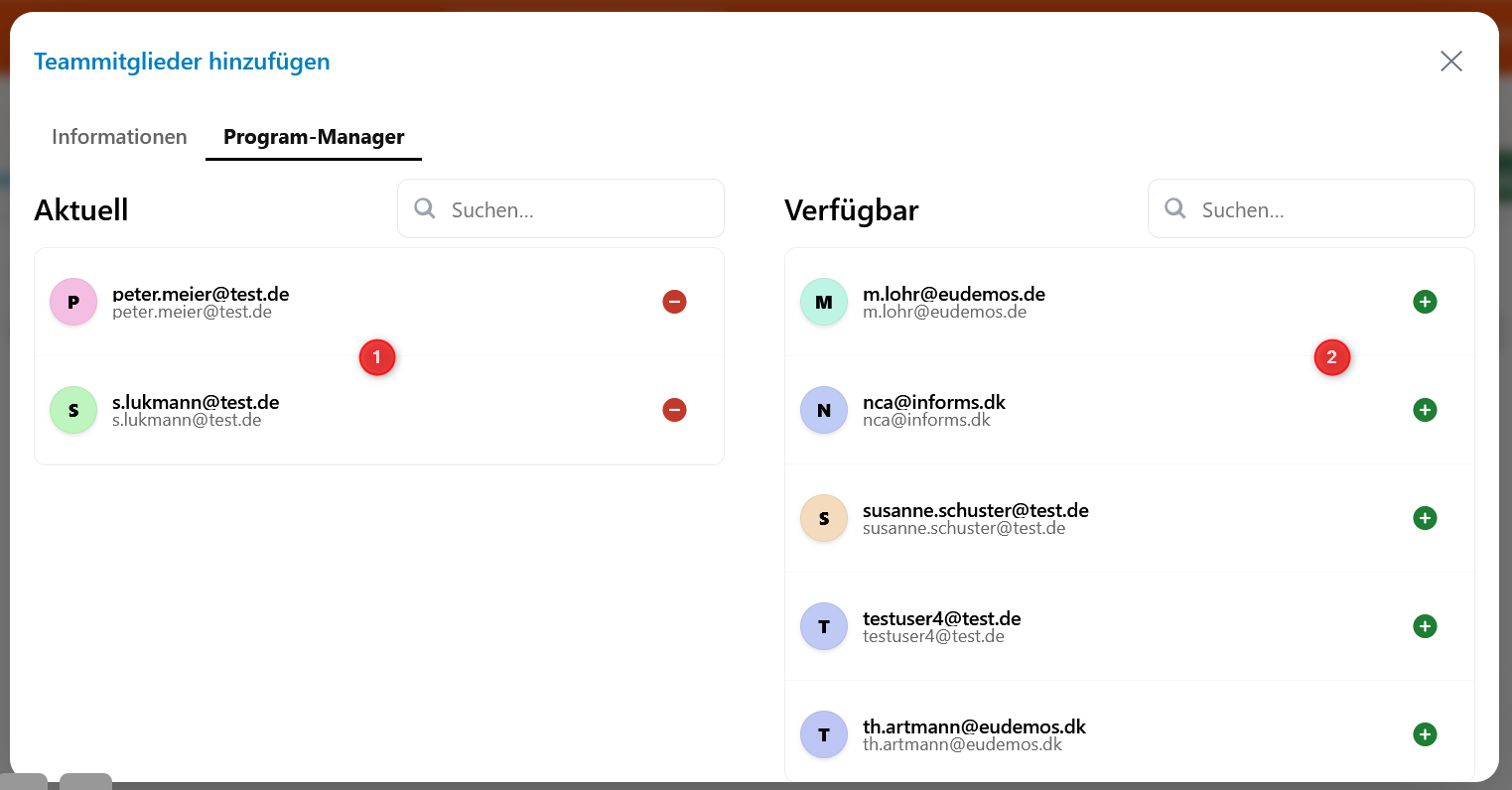
- Left: The already added users of the team are displayed here. These users are part of the team.
- Right: The available users who are not yet part of the team are listed here.
- Add and Remove:
- With the green plus sign you add a user to the team
- With the red minus sign you remove a user from the team
- Changes are saved immediately when you add or remove a user
Using Teams
Assign Teams as Program Managers
- Teams can be assigned as program managers for programs and checklists
- All members of the team then receive the rights and responsibilities of a program manager
- It's faster than adding all team members individually.
- You need the teams function when departments are led by dual leadership.
Teams as Responsible Persons for Organizational Units
- Teams can be assigned as responsible persons for organizational units
- All members of the team are then responsible for the corresponding organizational unit
- This simplifies management when several people share a responsibility
Important Notes
Team Names
- Use meaningful names that clearly describe the function of the team
- Avoid generic names like "Team 1" or "Group A"
- Good examples: "Program Manager Quality Management", "Responsible IT Department", "Management Team Berlin Location"
Team Memberships
- A user can be a member of multiple teams
- Changes to team memberships immediately affect all assignments where the team is used
- If a user is removed from a team, they automatically lose the corresponding rights and assignments
What Happens After Creation?
- The team is immediately available and can be assigned as a program manager or responsible person
- All members of the team automatically receive the corresponding rights and responsibilities
- Changes to the team composition immediately affect all assignments
- The team is displayed in all relevant areas of the system where teams can be selected